

Contents
- 1 Web Hosting Control Panels Explained Simply
- 2 What a control panel does
- 3 Why beginners need it
- 4 Common control panel types
- 5 What you will see inside
- 6 The main tools that matter
- 7 Domains
- 8 WordPress installer
- 9 File manager
- 10 Databases
- 11 SSL and security
- 12 Backups
- 13 Email accounts
- 14 How a beginner should use it
- 15 How Verpex fits in
- 16 A simple setup flow
- 17 Common mistakes to avoid
- 18 When the panel feels confusing
- 19 Why this matters for SEO
- 20 Final thoughts
- 21 Master Hosting Control Panels the Easy Way
- 22 FAQs – Frequently Asked Questions
Web Hosting Control Panels Explained Simply
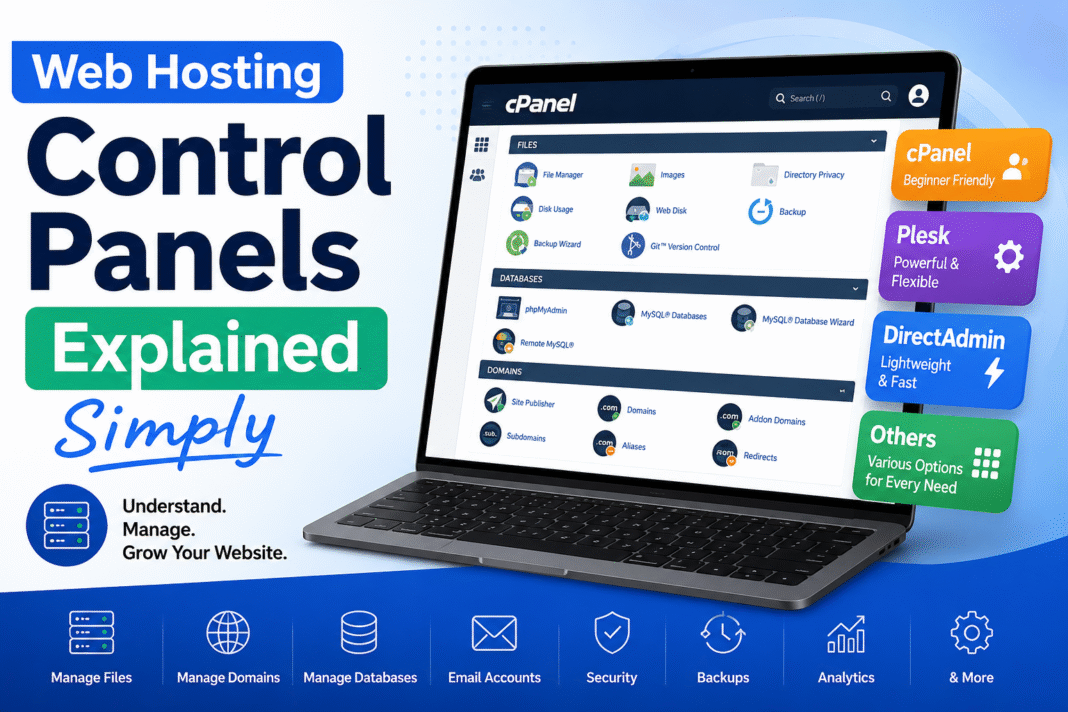
A hosting control panel is the dashboard you use to manage your website hosting account. It gives you one place to handle tasks like domain setup, WordPress installation, email accounts, SSL, backups, and file management. If you are new to hosting, this is the part that makes the whole account feel much easier to use.
This article explains hosting control panels in simple terms, with a focus on what beginners actually need to know. I will also show you how a Verpex hosting account fits into this process, so you can understand what to expect when you log in and start working on your site.
TL;DR
For beginners, the most important sections are domains, app installer, file manager, SSL, backups, and email. Learning these tools makes hosting much easier and gives you more control over your site from day one.
Explore Verpex Hosting Control PanelWhat a control panel does
A control panel is like the control room for your hosting account. Instead of dealing with server commands or technical code, you use buttons, menus, and settings on a dashboard. That is why beginners often find it much easier than working directly with a server.
Most hosting control panels let you do a few core things. You can connect domains, create email addresses, install WordPress, manage files, add databases, and turn on SSL. Some panels also include backup tools, DNS settings, and security options.
For a new website owner, this matters a lot. You do not need to know server administration to launch a blog or a simple business site. You only need to know where the key tools are and how to use them step by step.
Why beginners need it
Many people buy hosting and then feel stuck because they do not know where to start. The control panel solves that problem by putting the main tools in one place. It gives structure to the setup process.
For example, if you want to install WordPress, you do not need to upload every file by hand. You can usually use a one-click installer from the control panel. If you want to create a business email, you can do that in a few clicks too.
This is why control panels are so important for beginners. They reduce the learning curve and make hosting feel less technical. That is especially useful when you are setting up your first blog, portfolio, or niche site.
Common control panel types
There are several control panels in the hosting world, but most beginners will only need to understand the basics. The most common one is cPanel. It is widely used and known for being simple once you learn where things are.
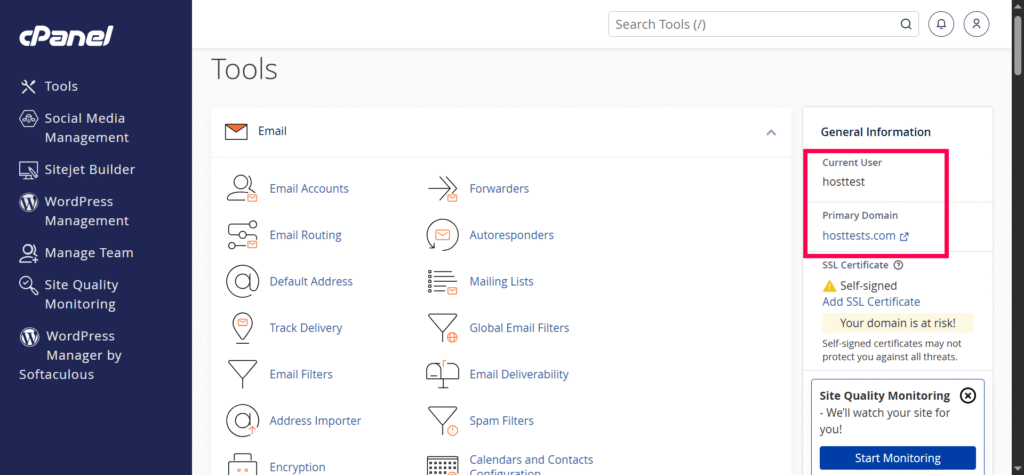
Some hosting providers also use custom dashboards or modern control systems. These may look cleaner, but the main idea is the same. You still get a place to manage your hosting features without touching server code.
Verpex uses a setup that includes cPanel for many of its hosting plans, which is helpful if you want a familiar interface. That means you can manage your website through a standard dashboard instead of starting from scratch with a custom system.
What you will see inside
When you open a hosting control panel, you usually see grouped sections. These sections are designed to help you find the right tool quickly. At first, the screen may look busy, but the layout becomes easier once you know the main areas.
You will usually find tools for domains, email, files, databases, security, and software installation. Some panels also show statistics like disk usage, bandwidth, and account limits. These numbers help you understand how your hosting is being used.
A beginner does not need to study every option right away. The most useful approach is to learn the tools you will use most often. That usually means WordPress, file manager, SSL, backups, and email.
The main tools that matter
Domains
The domain section is where you manage website names and subdomains. If you bought your domain separately, this is where you connect it to your hosting account. It is also where you may add park domains or new subdomains later.
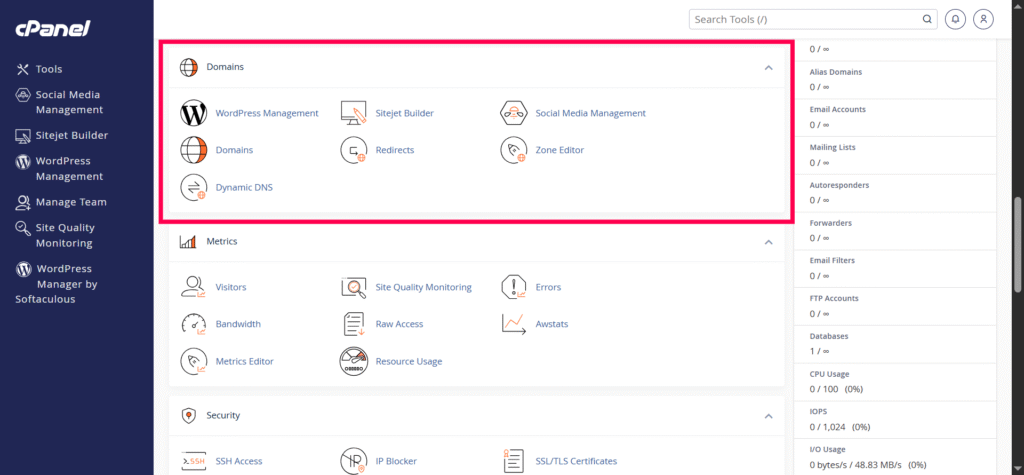
This matters because your website must point to the correct hosting account. If the domain is not connected properly, your site will not load the way you expect. So this is one of the first things to check when setting up a new site.
WordPress installer
Most beginners use WordPress because it is easy to start with and flexible enough for many site types. A control panel usually includes a WordPress installer or app installer. This lets you set up WordPress without uploading files manually.
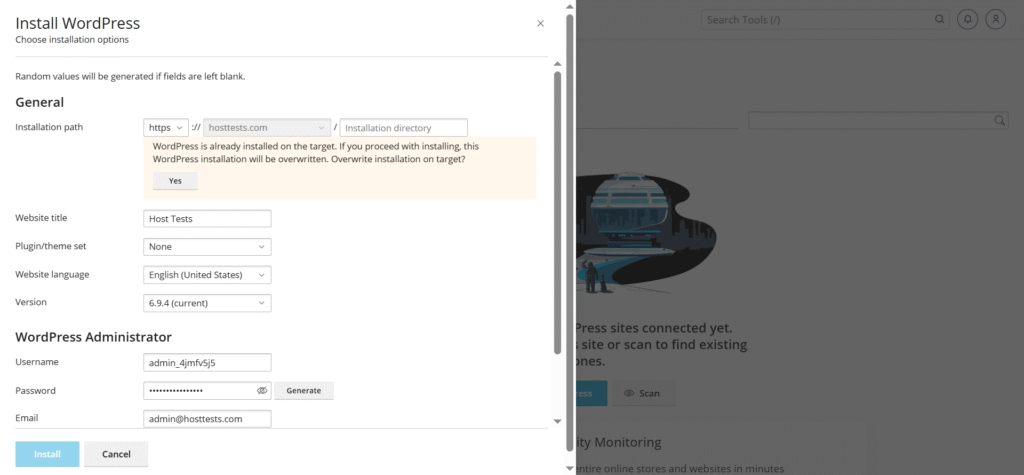
You choose your domain, add login details, and click install. That is usually enough to get a working site online. For a first-time user, this is one of the most useful features in the whole panel.
File manager
The file manager lets you see your website files without using FTP software. It is useful when you need to upload an image, edit a configuration file, or check the contents of a folder. You do not need it every day, but it is good to know where it is.
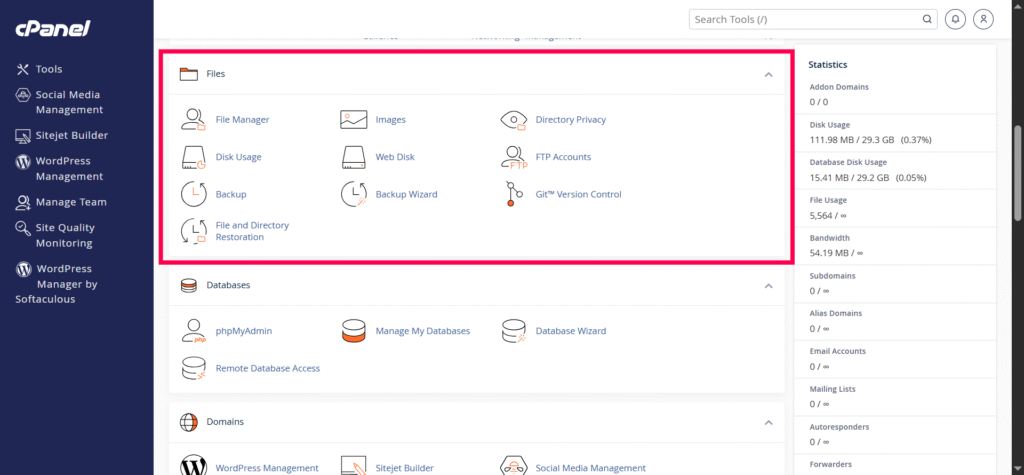
If something goes wrong with your site, the file manager can help you inspect it quickly. That is one reason why beginners should learn this section early. It gives you a simple way to handle files without extra tools.
Databases
WordPress uses a database to store posts, pages, settings, and user information. The control panel usually gives you tools for creating and managing databases. You do not need to work with them every day, but they are part of the setup.
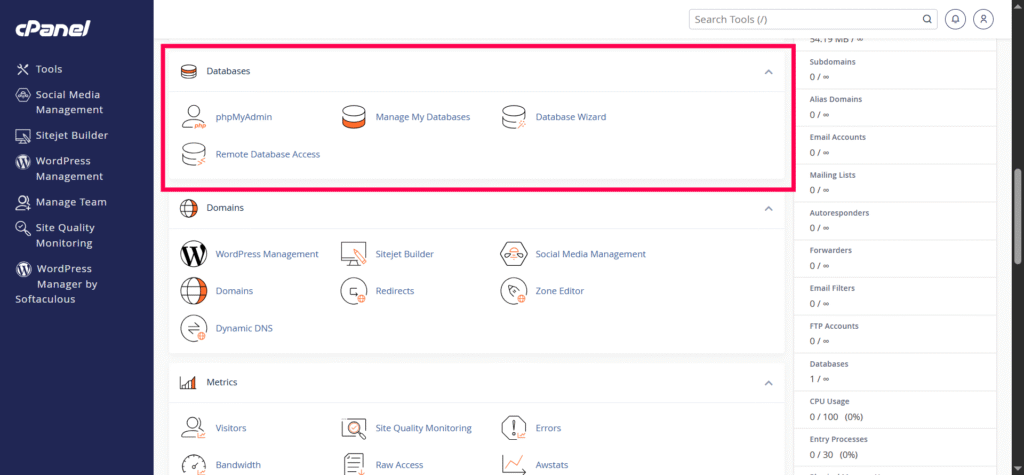
If you install WordPress through the panel, the database is often created for you. That removes one of the most technical steps. Still, it helps to know where the database section is in case you need it later.
SSL and security
SSL is what makes your site use HTTPS. It protects data and helps visitors trust your site. Most control panels have a security section where you can manage SSL certificates or check their status.
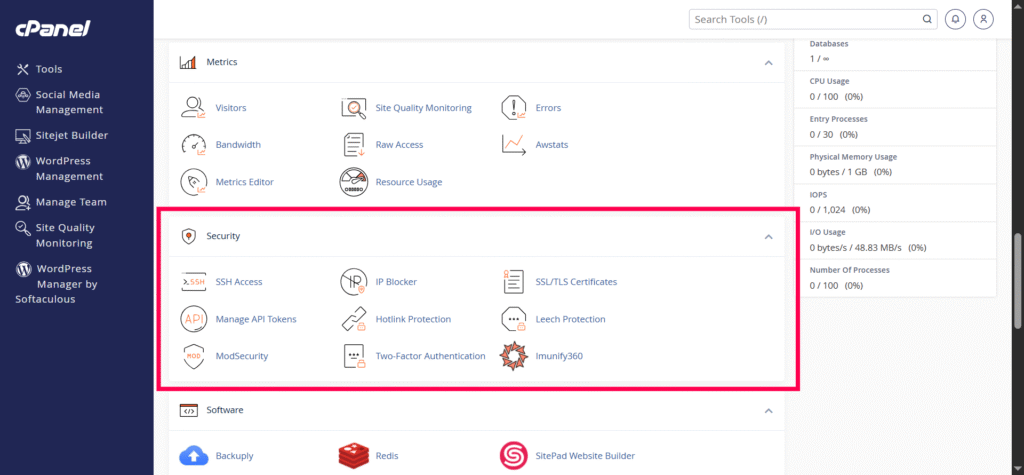
For a new website, SSL is one of the first things you should confirm. If your browser shows a warning or the address bar does not show HTTPS, the site may not be fully secured yet. That is why this section matters so much.
Backups
Backups are your safety net. If you make a mistake, update a plugin badly, or lose files, a backup can help you restore the site. Many control panels include backup tools or connect to a backup service.
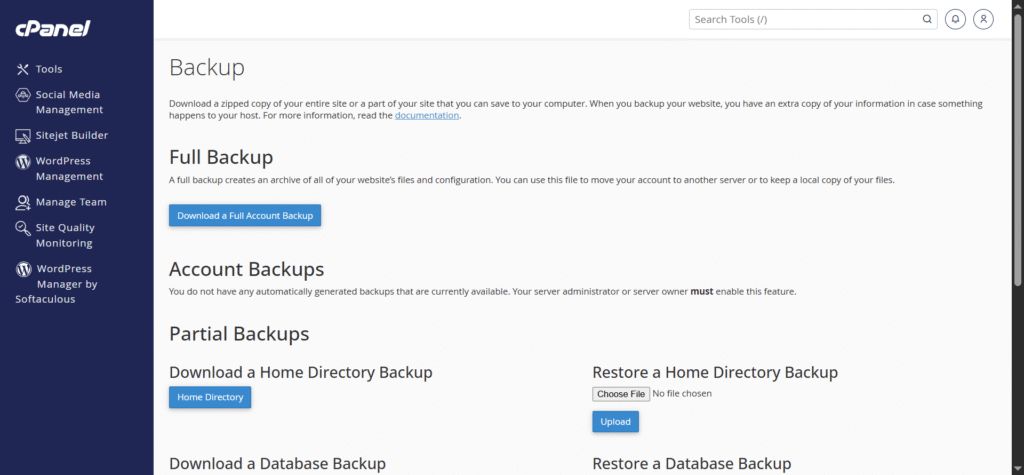
You should always check whether backups are included in your plan and how often they run. Even if your site is small, backups are still important. A simple blog can still break, and it is much easier to restore than rebuild.
Email accounts
A control panel also lets you create email accounts using your domain name. This is useful if you want a professional address like hello@yourdomain.com. It looks more polished than using a free email service for site contact.
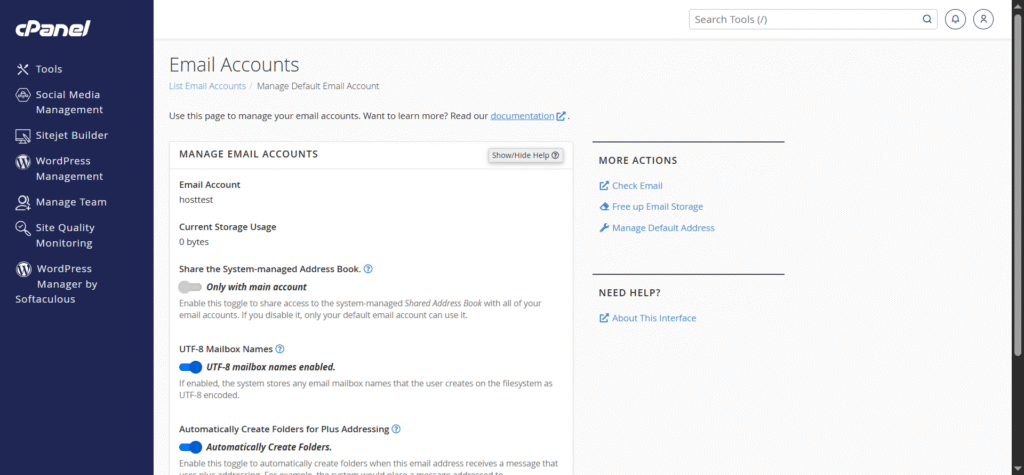
For a personal blog, this may not be urgent. But for a business site, portfolio, or service page, it can make a good first impression. It is a small feature that adds credibility.
👉📖 Read Complete Beginner’s Guide to cPanel Email Tools 👈
How a beginner should use it
The best way to start is to focus on one task at a time. Do not try to learn every tool on the first day. That usually creates confusion and slows you down.
Begin with the basics. Log in, find your domain, install WordPress, and check SSL. After that, look at backups and email. Once you understand these areas, the rest of the panel feels much less intimidating.
A simple rule helps here. If a tool does not help you launch or protect the site, you can learn it later. That keeps your setup process calm and manageable.
How Verpex fits in
Verpex is useful for beginners because it gives you access to the hosting tools in a familiar way. If your plan includes cPanel, you can manage the account through a standard panel that many web users already know. That makes the first setup easier to follow.
This is especially helpful if you are setting up your first blog or niche site. You can handle the main tasks from one dashboard instead of jumping between different systems. For many new users, that is enough to make the hosting experience feel much less confusing.
If you want to try a Verpex plan while following a practical setup process, you can start here: Verpex Hosting.
A simple setup flow
If you are using a control panel for the first time, follow this order:
- Log in to your hosting account.
- Open the control panel.
- Check that your domain is connected.
- Install WordPress or your chosen software.
- Turn on SSL.
- Create email if needed.
- Review backups.
- Visit your site and test the login.
This order works well because it starts with the setup basics and ends with a live check. You do not need to do everything at once. You just need to move through the steps in a logical way.
Common mistakes to avoid
One common mistake is clicking around without knowing what each section does. That can lead to changes you did not mean to make. It is better to understand the purpose of a tool before changing anything.
Another mistake is skipping SSL or backups because the site is still new. These are easy to ignore, but they matter from the start. A site that is live and secure is easier to build on later.
A third mistake is trying to customize too much before the basic setup works. Get the site online first. Then you can change themes, add plugins, and adjust design settings with more confidence.
When the panel feels confusing
It is normal for a hosting panel to feel crowded at first. There are many icons, menus, and labels, and not all of them will matter to you. The trick is to focus only on the tools you need right now.
Start with the sections that help you launch the site. After that, learn the tools that help you maintain it. This step-by-step habit makes the whole process easier to remember.
If you get stuck, try to match the tool to the task. Want to install WordPress? Look for the app installer. Want to connect a domain? Look for the domain or DNS section. Want to secure the site? Check SSL or security settings.
Why this matters for SEO
A good hosting setup affects your site performance, security, and stability. Those things matter to visitors, and they also matter to search engines. If your site loads properly and stays online, it gives your content a better chance to perform well.
The control panel helps you manage these basics without needing technical support every time. That makes it easier to keep the site healthy. For someone building a blog or affiliate site, that kind of control is valuable.
It also saves time. Instead of paying someone to do every small task, you can learn the basics yourself. Over time, that makes your website work feel more efficient and more predictable.
Final thoughts
A hosting control panel is not something you need to master all at once. You only need to learn the parts that help you launch, secure, and manage your site. Once you understand the main tools, hosting becomes much easier to handle.
For beginners, the most useful sections are domains, WordPress installation, file manager, SSL, backups, and email. Those are the tools you will use again and again. If your hosting plan uses cPanel, the learning curve is usually gentle after the first visit.
If you are setting up a real site on Verpex, this is the right place to start. Open the panel, learn the core tools, and move through the setup one step at a time. That simple approach is usually the best one.
🙏 Disclosure & Thank You
This post contains affiliate links to Verpex.
If you purchase through my links, I earn a small commission at no extra cost to you. Thank you for supporting us – DreamHosters
FAQs – Frequently Asked Questions
1. What is a hosting control panel?
A hosting control panel is the dashboard you use to manage your website hosting account. It lets you handle domains, WordPress installation, email, SSL, backups, and files from one place instead of using server commands.
2. Do I need technical skills to use a hosting control panel?
No, you do not need advanced technical skills. Most panels use simple menus and buttons. As a beginner, you only need to learn the basic sections like domains, app installer, SSL, and backups.
3. What are the most important parts of a control panel for beginners?
The most important parts are domains, WordPress or app installer, file manager, SSL/security, backups, and email. These tools cover the main tasks you need to launch and maintain a simple website.
4. How does a control panel help with SEO?
A control panel helps you keep your site online, secure, and loading properly. It also lets you manage SSL, structure, and performance settings, which support better SEO and user experience.
5. Where can I try a hosting control panel like cPanel with Verpex?
You can sign up for Verpex and use its hosting control panel to practice setup and manage your first website:
Start Verpex Hosting and Try the Control Panel