


Best WordPress Plugins for Bloggers on WordPress.com – 2026
You want more traffic, faster load times, and a loyal audience. The right plugins make that happen. And here’s the big news: WordPress.com now allows plugins on every paid plan – But you’ll need a Business or Commerce plan to unlock full access
This guide walks you through the best plugins for bloggers. We’ll cover SEO, performance, security, email lists, social sharing, and more. Each plugin is tested to work smoothly on WordPress.com.
👉 Start your WordPress.com plan and unlock powerful plugins
Understanding Plugins on WordPress.com
Plugins are add‑ons that give your blog extra features. Think of them like apps for your website.
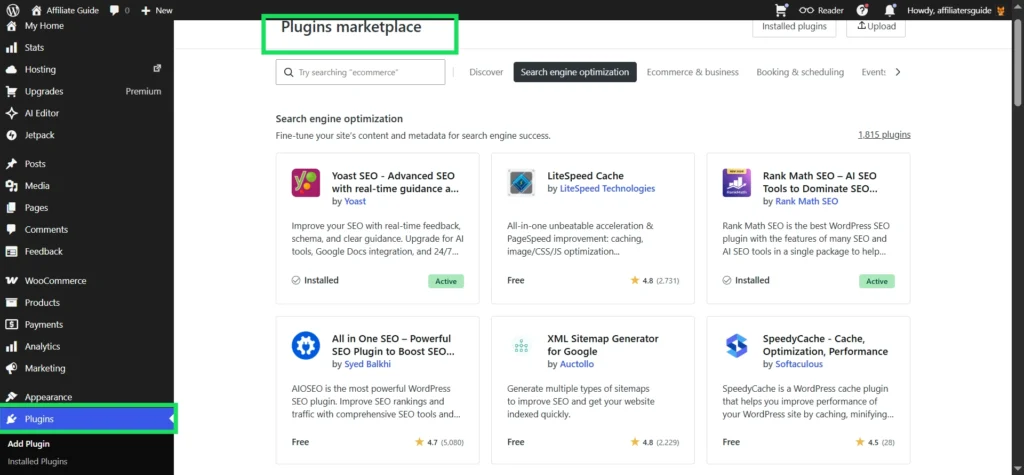
WordPress.com makes plugin installation simple, you don’t need FTP or file managers. Just go to Plugins in your dashboard, search, and click Install and activate. WordPress.com handles the rest – automatic updates, security checks, and hosting optimizations.
Which plans include plugins?
- Personal – Yes
- Premium – Yes
- Business – Yes
- Commerce – Yes
- Free – No
If you are on a free plan, upgrade to a paid plan to start using plugins. The Business plan is a good choice because it includes many useful features.
How We Selected These Plugins
Not all plugins are worth your time.
We tested and selected plugins based on:
- Compatibility with WordPress.com
- Speed impact (lightweight performance)
- Ease of use for beginners
- Real-world blogging benefits
- Active support and updates
👉 These are not random recommendations. They are battle-tested tools used by successful bloggers.
Essential SEO Plugins
Search engine visibility is the engine that drives your blog’s growth. Without it, even great content stays hidden. These powerful SEO plugins make it easy to optimize your posts, improve rankings, and attract more visitors — all without needing any technical expertise.
Yoast SEO – The All-in-One Leader
Yoast SEO is the most popular plugin for a reason. It scans every post and gives you color-coded feedback right inside the editor, helping you optimize content without technical skills.
- Readability check – flags long sentences, passive voice, and transition words
- Keyword optimization – ensures proper keyphrase usage
- Meta description preview – shows how your post appears on Google
- XML sitemap – helps search engines index your content
- Breadcrumbs – improves navigation and internal linking
- Schema markup – enables rich snippets like ratings
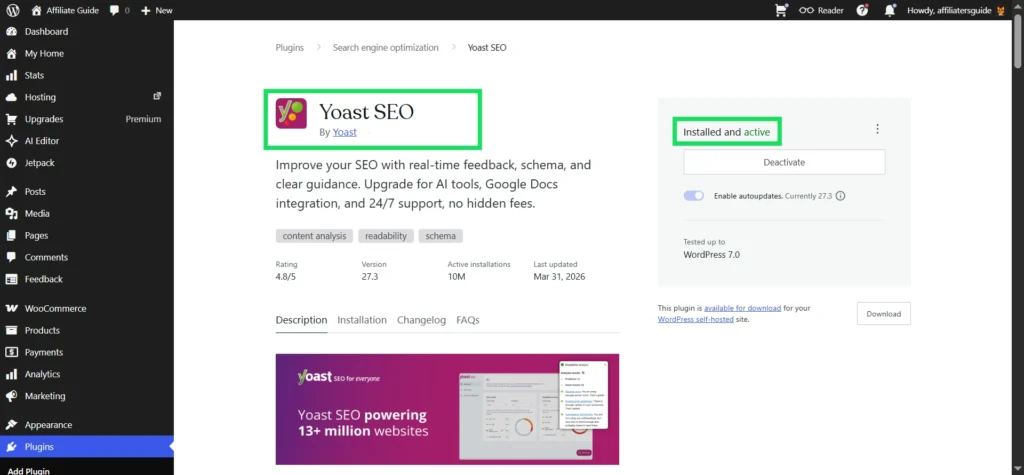
Setup: Install from Plugins → Add New → search “Yoast SEO.” Run the configuration wizard. Set your site type as “Blog.” Then write posts as usual – Yoast gives you green lights when you’re ready.
Pro tip: Use the bulk editor to update old posts. Fix focus keyphrase issues across your archive in minutes.
Premium version adds internal linking suggestions, redirect manager, and social previews. But the free version is excellent for most bloggers.
Rank Math – Lightweight and Fast
Rank Math is a powerful and fast-growing SEO plugin that many bloggers are switching to. It’s lighter than Yoast and comes packed with advanced features that usually require paid upgrades in other tools.
- Schema generator – supports 40+ types like articles, FAQs, how-to, and recipes
- Instant indexing – notifies Google and Bing when you publish content
- 404 monitor – tracks broken links and helps redirect them
- Link counter – shows outbound and affiliate links clearly
- Built-in analytics – displays search performance directly in your dashboard
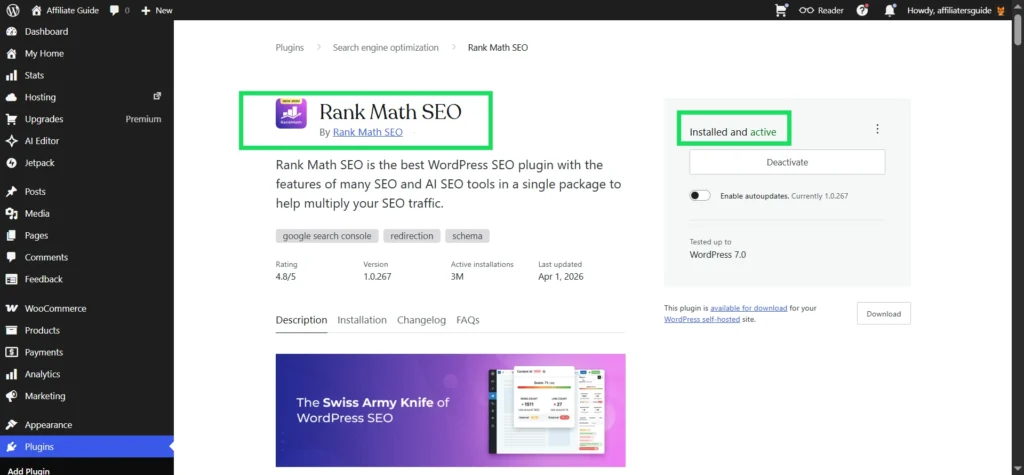
Setup: Install, run the 5‑minute wizard. Import your settings from Yoast if you’re switching.
Pro tip: Enable the 404 monitor to reclaim lost traffic. Redirect old broken URLs to your newest posts.
Site Kit by Google – Data Without Code
Site Kit brings all your essential Google tools into one place. It connects Google Analytics, Search Console, AdSense, and PageSpeed Insights directly to your dashboard, so you can track performance without touching a single line of code.
- Real-time traffic stats – see which posts are trending right now
- Search query data – discover the exact keywords bringing visitors
- PageSpeed insights – identify slow pages and get optimization tips
- AdSense earnings – track your revenue alongside traffic data
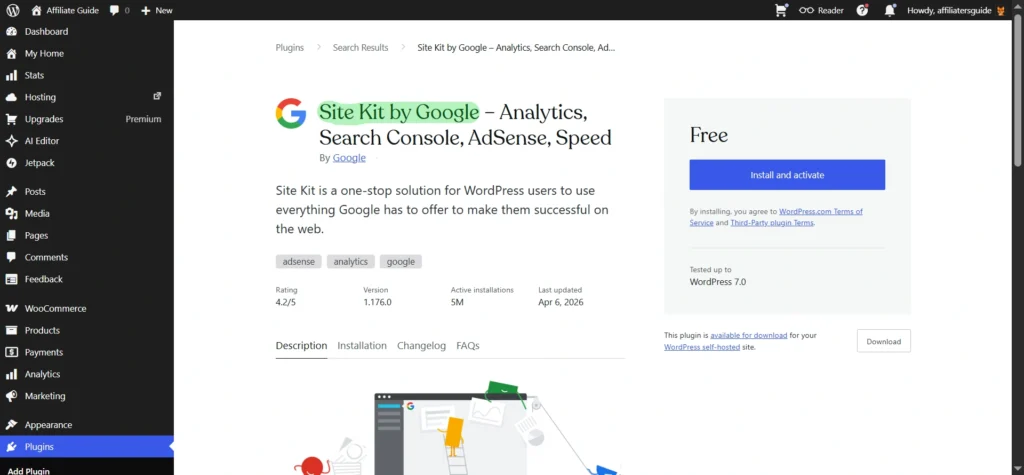
Setup: One‑click Google sign‑in. Grant permissions. Done.
Pro tip: Use Search Console data to find underperforming posts that rank on page 2. Optimize them to push into top 3 results.
Performance Optimization Plugins
Slow blogs lose readers. These plugins make your site lightning fast.
LiteSpeed Cache – The Speed Demon
LiteSpeed Cache is a powerful performance plugin that dramatically improves your site speed. It uses advanced server-level caching (supported on higher WordPress.com plans) and delivers impressive speed gains even with basic settings.
- Page caching – serves static HTML for faster loading
- Image optimization – compresses images without losing quality
- CSS/JS minification – removes unnecessary code for better performance
- Lazy loading – loads images only when they are visible
- Database cleaner – removes spam, revisions, and unused data
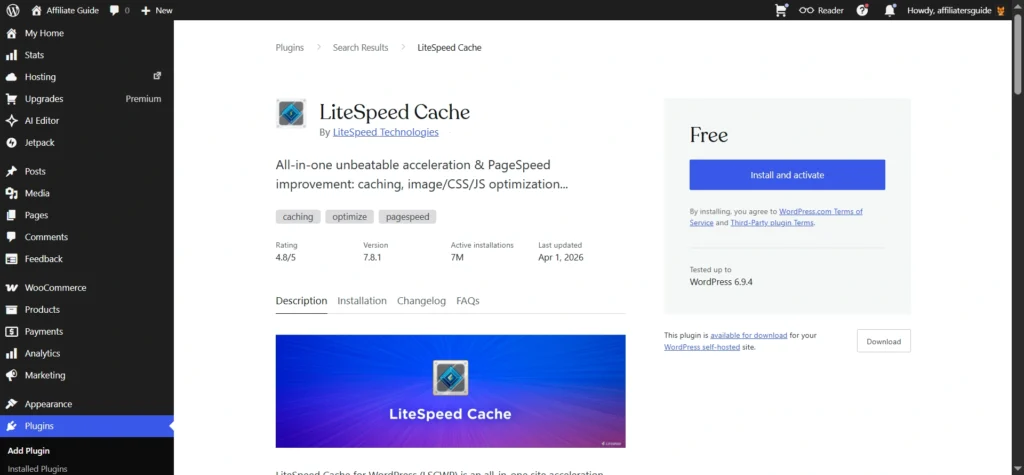
Setup: Install and activate. Go to Settings → LiteSpeed Cache → enable all recommended toggles. Purge cache after major changes.
Pro tip: Use the built‑in crawler to warm up your cache before publishing a new post.
Jetpack Performance Module
Jetpack comes pre-installed on many WordPress.com plans and offers a simple, reliable way to boost your site’s performance. Its performance module is beginner-friendly and integrates seamlessly with the WordPress.com ecosystem.
- Site accelerator (Photon CDN) – delivers images via WordPress.com’s global network
- Lazy loading – loads images only when they enter the viewport
- Carousel galleries – creates fast and responsive image popups
- Infinite scroll – automatically loads more posts as users scroll
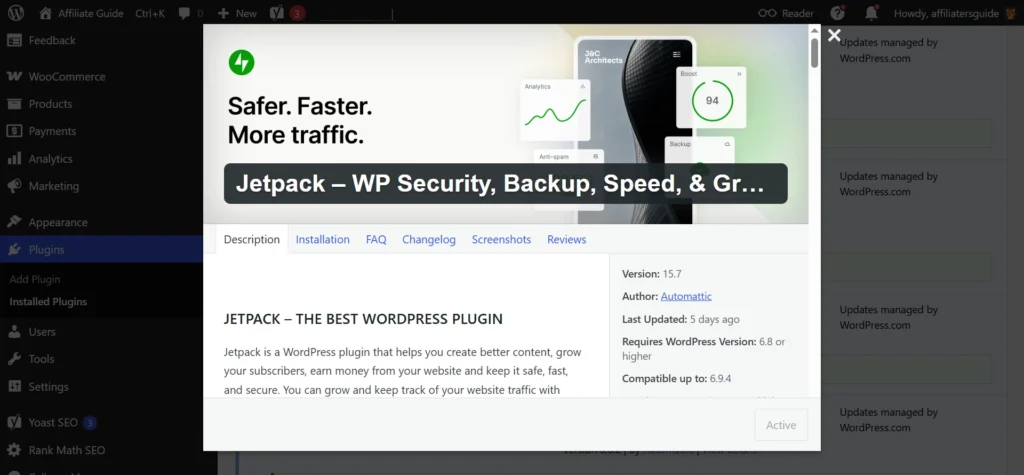
Setup: Go to Jetpack → Settings → Performance. Toggle on “Enable site accelerator” and “Lazy load images.”
Pro tip: Combine Jetpack’s image CDN with LiteSpeed for maximum speed.
WP Rocket – Premium Speed Optimization
If you have the budget, WP Rocket is one of the easiest and most powerful premium caching plugins. It works right out of the box with minimal setup, making it perfect for bloggers who want instant performance improvements without technical complexity.
- Page preloading – builds cache before visitors arrive for instant loading
- Critical CSS – loads above-the-fold content faster
- Database optimization – automatically cleans unnecessary data
- Remove unused CSS – reduces theme bloat for better speed
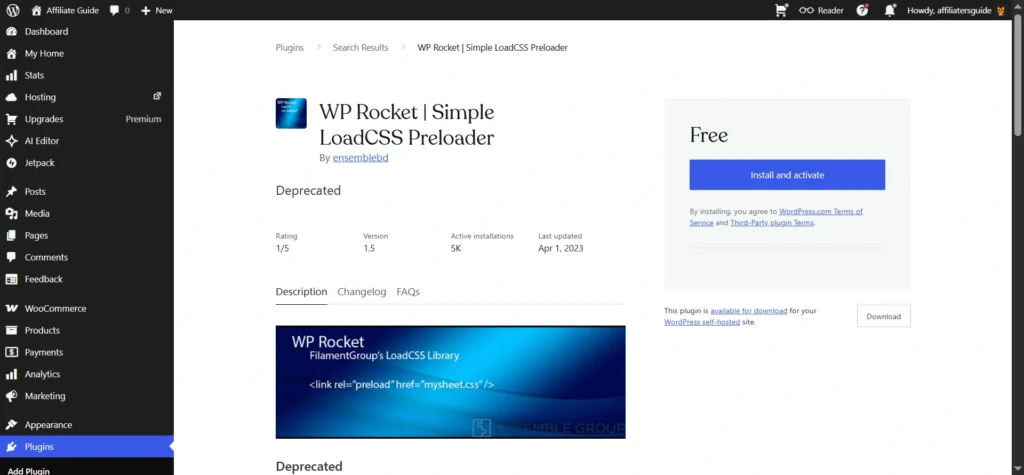
Note: WP Rocket requires a separate license. But many bloggers find the free LiteSpeed plugin sufficient.
Rock‑Solid Security Plugins
A hacked blog destroys trust and rankings. These plugins keep you safe.
Akismet – Spam Slayer
Akismet comes pre-installed on WordPress.com and is essential for protecting your blog from spam comments. Once activated, it automatically filters out unwanted content so you can focus on real engagement.
- Automatic spam detection – checks comments against a global spam database
- Discards obvious spam – eliminates the need for manual moderation
- Stats dashboard – shows how many spam attempts have been blocked
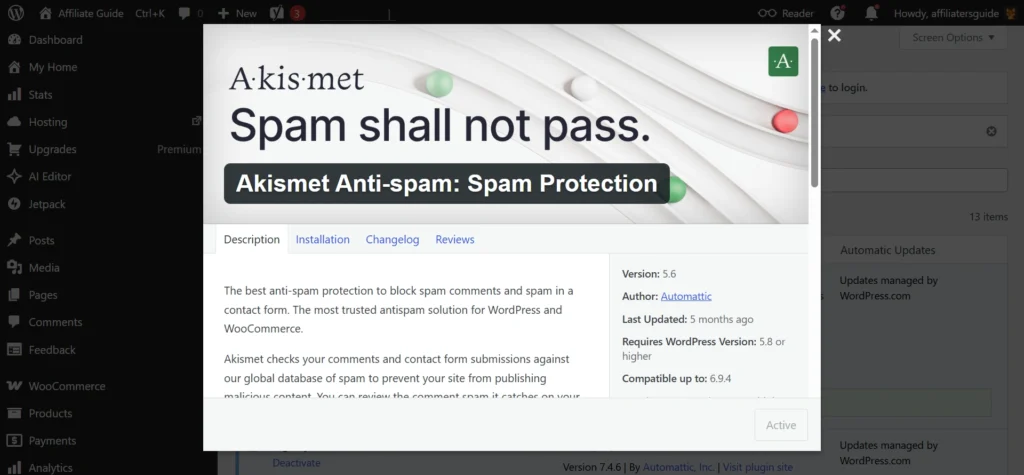
Setup: Go to Plugins → Akismet → activate. Use the free API key provided with your WordPress.com plan.
Pro tip: Clean comment threads improve SEO and encourage real discussion.
Jetpack Security Essentials
Jetpack provides a solid set of built-in security tools for WordPress.com users. It’s easy to enable and helps protect your site from common threats without requiring any technical setup.
- Brute force protection – limits repeated login attempts to prevent attacks
- Downtime monitoring – alerts you instantly if your site goes offline
- Activity log – tracks changes to posts, plugins, and settings
Setup: Jetpack → Security → toggle on “Protect” and “Monitor.”
Pro tip: Enable two‑factor authentication (2FA) for your WordPress.com account under Users → Profile.
Wordfence (Advanced)
Wordfence is a powerful security plugin that adds an advanced firewall and malware scanner to your site. On WordPress.com, the lightweight version works best, giving you strong protection without affecting performance.
- Firewall – blocks malicious traffic before it reaches your site
- Malware scan – checks files against the official WordPress repository
- Login security – enforces strong passwords and limits login attempts
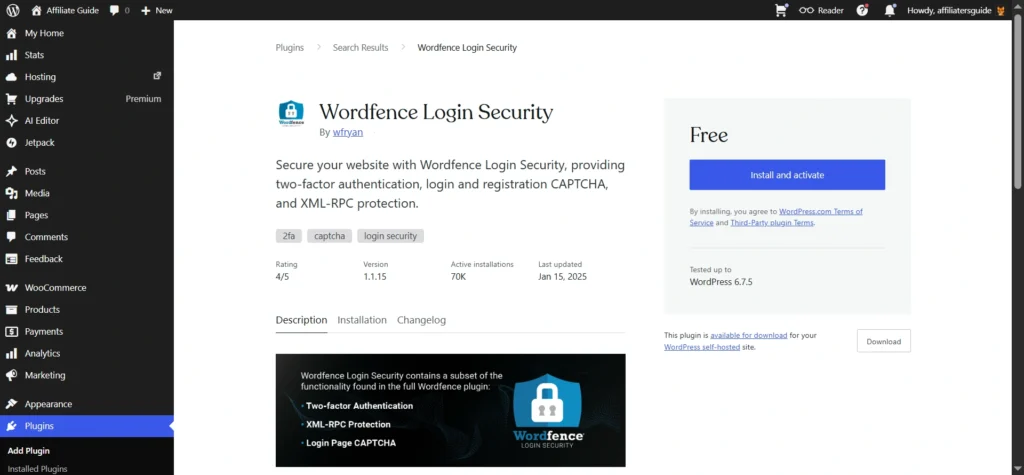
Setup: Install Wordfence. Run a scan immediately. Configure firewall to “Learning Mode” first, then switch to “Enabled.”
Note: Wordfence can be resource‑intensive. Monitor your site’s speed after installing.
Audience Engagement Powerhouses
Turn one‑time visitors into loyal subscribers.
MailPoet – Email Marketing Made Simple
MailPoet makes email marketing simple by letting you build and manage your email list directly inside WordPress.com. You can create newsletters, automate emails, and grow your audience without relying on external tools.
- Drag-and-drop builder – design beautiful email newsletters بسهولة
- Post notifications – automatically send emails when you publish new content
- Subscription forms – place signup forms anywhere on your site
- Automation – send welcome emails, sequences, and reminders
- Analytics – track open rates, clicks, and subscriber growth
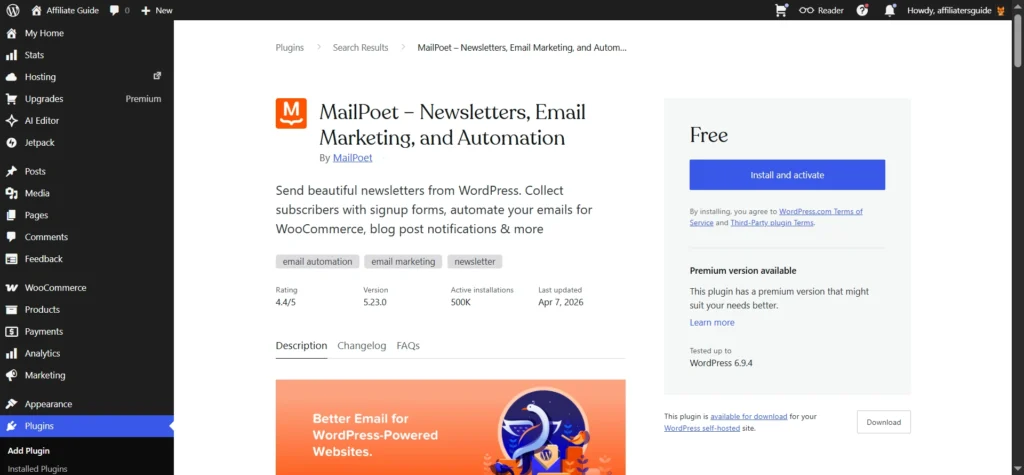
Setup: Install MailPoet. Run the setup wizard. Connect your sending method (MailPoet’s own service is easiest). Create a signup form and add it to your site.
Pro tip: Send a weekly digest of your best posts. Keep your blog top‑of‑mind without overwhelming subscribers.
WPForms – Forms That Convert
WPForms is one of the easiest form builders available for WordPress. It allows you to create professional forms like contact forms, email signups, surveys, and polls in just a few minutes without writing any code.
- Drag-and-drop builder – create forms easily without coding
- Pre-built templates – ready-made forms for contact, newsletter, and feedback
- Spam protection – includes honeypot and CAPTCHA options
- Entry management – view and manage submissions directly in your dashboard
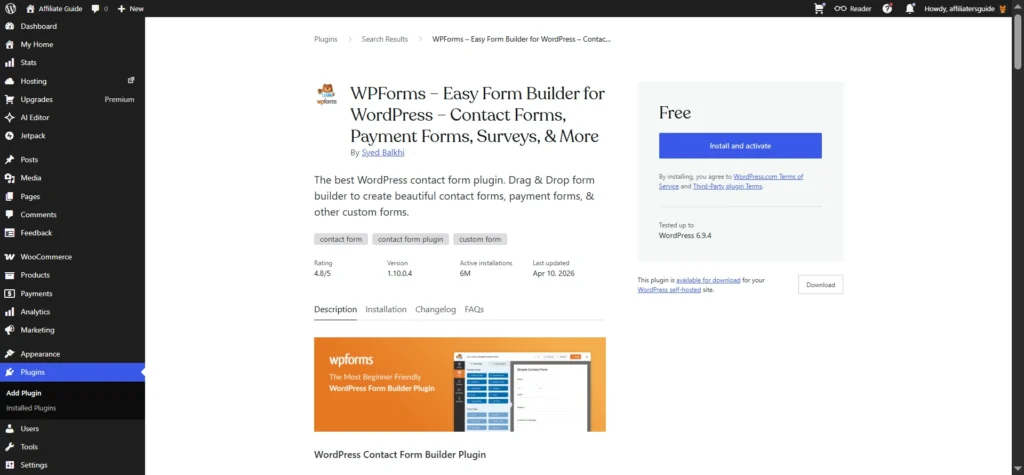
Setup: Install WPForms. Go to WPForms → Add New. Choose a template. Drag fields onto the form. Embed it into any post or page with a shortcode.
Pro tip: Add a “Subscribe to my newsletter” form at the end of every post. Turn casual readers into email subscribers.
Smash Balloon Social Photo Feed
If you’re active on Instagram, Smash Balloon lets you display your feed directly on your blog. It’s especially useful for food, fashion, and travel bloggers who want to showcase visual content and boost engagement.
- Instagram feed embed – display posts in grid or carousel layout
- Stories support – showcase your Instagram Stories on your site
- Lightbox popup – users can view, like, and interact without leaving your site
- Hashtag feed – display user-generated content using hashtags
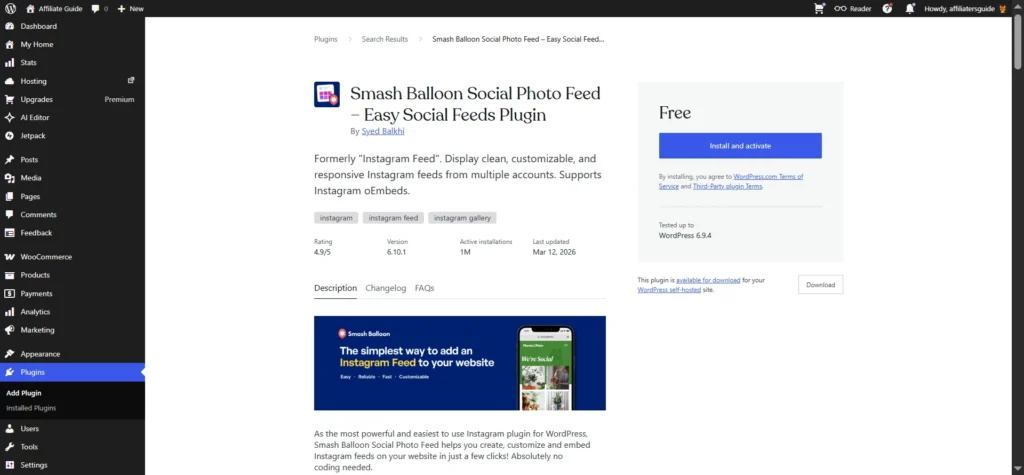
Setup: Install Smash Balloon. Connect your Instagram account. Copy the shortcode into any post, page, or widget.
Pro tip: Use a hashtag feed to show reader photos. Builds community and encourages sharing.
Social Sharing and Analytics
Make it easy for readers to share your content.
Social Warfare helps you add stylish and high-performance share buttons to your blog without slowing down your site. It’s designed to boost social shares and drive more traffic from platforms like Facebook, Twitter, and Pinterest.
- Floating share bar – stays visible as users scroll through your content
- Custom share images – control how your posts appear on social media
- Click tracking – monitor which platforms bring the most traffic
- Pinterest rich pins – automatically pull descriptions for better visibility
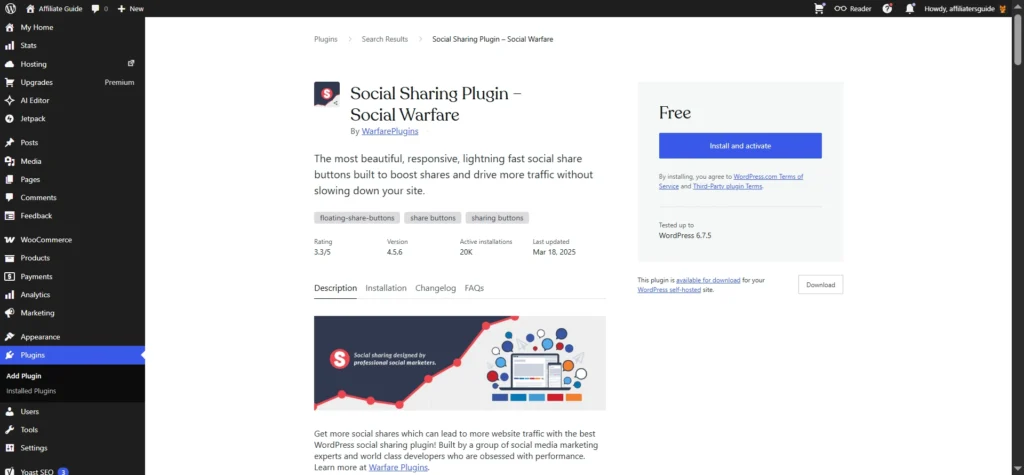
Setup: Install Social Warfare. Go to Social Warfare → Settings. Choose button placement (top, bottom, floating). Select which social networks to show.
Pro tip: A/B test button colors and positions. A 1% increase in shares can double your referral traffic.
MonsterInsights – Google Analytics Made Easy
MonsterInsights makes it easy to connect Google Analytics to your WordPress dashboard. You can track real-time traffic, user behavior, and performance metrics without leaving your site.
- Dashboard reports – view top pages, traffic sources, and trends
- Event tracking – automatically track downloads, links, and form submissions
- Custom dimensions – analyze traffic by author, category, or content type
- Enhanced ecommerce – track sales and conversions if you run a store
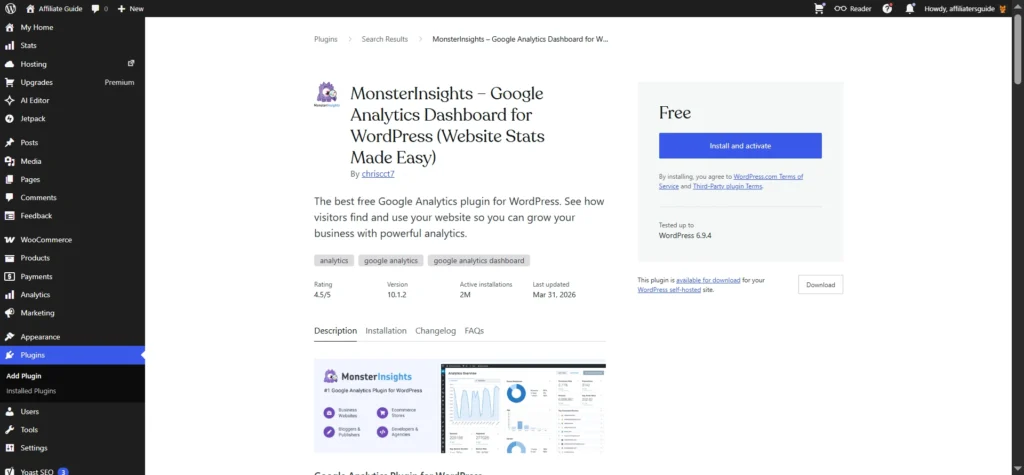
Setup: Install MonsterInsights. Connect your Google Analytics account. The plugin will add tracking code automatically.
Pro tip: Use custom dimensions to see which categories drive the most traffic. Double down on what’s working.
Monetization and Maintenance
Make money and keep your blog healthy.
Ad Inserter – Maximize Ad Revenue
Ad Inserter gives you full control over ad placement, allowing you to insert ads exactly where they perform best. Whether it’s inside content, after images, or in sidebars, you can optimize revenue without harming user experience.
- Flexible placement – insert ads before/after posts, between paragraphs, or in sidebars
- Device targeting – show different ads on mobile and desktop
- A/B testing – rotate ads to find the highest-performing versions
- Lazy loading – delay ad scripts to improve page speed
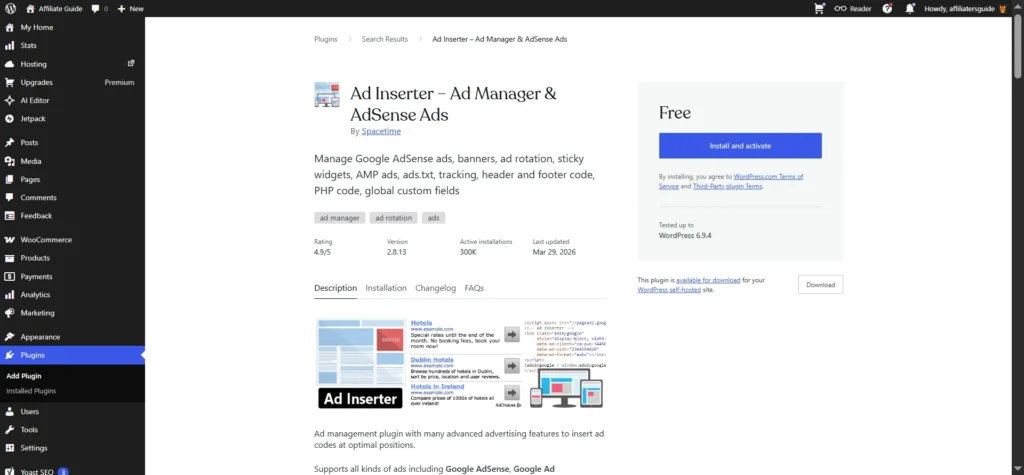
Setup: Install Ad Inserter. Create an ad block with your ad code (Google AdSense, Mediavine, etc.). Choose insertion rules. Preview to ensure it looks right.
Pro tip: Limit ads to 2‑3 per page. Too many ads increase bounce rates.
UpdraftPlus – Backup Your Content
While WordPress.com includes built-in backups, UpdraftPlus gives you greater control and flexibility. You can schedule backups, store them in the cloud, and restore your site quickly whenever needed.
- Scheduled backups – automate daily, weekly, or manual backups
- Selective restore – restore specific parts like posts, plugins, or comments
- Incremental backups – saves only changes to reduce storage and improve efficiency
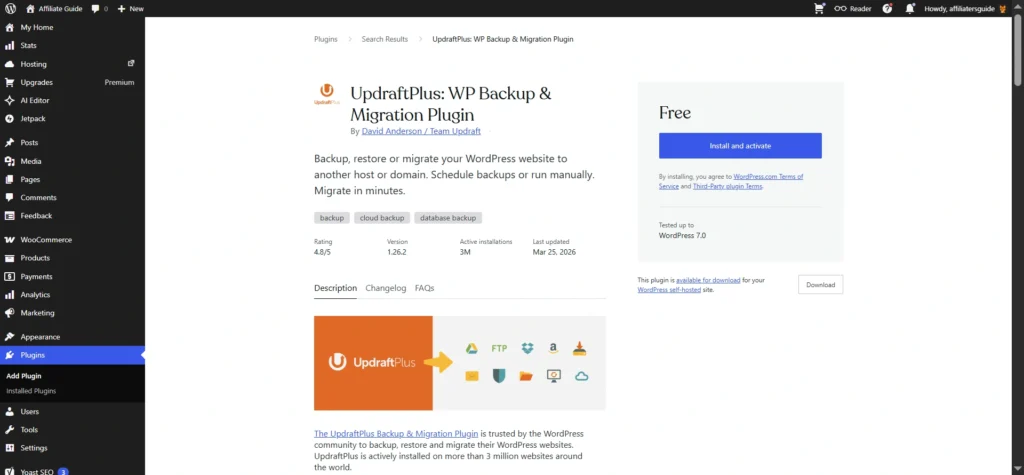
Setup: Install UpdraftPlus. Go to Settings → UpdraftPlus. Choose a remote storage location. Set a schedule (weekly is fine for most blogs).
Pro tip: Run a manual backup before installing any major plugin update. Safe than sorry.
Implementation Strategy (Step by Step)
Don’t install everything at once. Follow this order:
- Security first – Activate Akismet and Jetpack Protect.
- SEO second – Install Yoast SEO or Rank Math. Run the setup wizard.
- Performance third – Install LiteSpeed Cache. Enable basic caching and image optimization.
- Engagement fourth – Add MailPoet for email and WPForms for contact.
- Monetization fifth – Ad Inserter if you run ads.
- Backup sixth – UpdraftPlus for peace of mind.
Test your site speed after each new plugin. Use Google PageSpeed Insights or GTmetrix.
👉 [Affiliate Link: Get the best WordPress.com plan for your blog – plugins included]
Troubleshooting Common Plugin Issues
| Problem | Solution |
|---|---|
| Plugin conflicts (site looks broken) | Deactivate all plugins. Reactivate one by one. The last one that breaks the site is the conflict. |
| Site became slow | Check LiteSpeed Cache settings. Enable “Lazy load” and “Image optimization.” Clear cache. |
| “Plugin not compatible” message | Check if your plan supports plugins. Free plans don’t. Upgrade to any paid plan. |
| Can’t find a plugin in directory | Some plugins require Business plan for ZIP uploads. Or search by feature, not exact name. |
| Emails from MailPoet go to spam | Use MailPoet’s sending service. It’s pre‑configured for high deliverability. |
Blogger Success Stories
Travel blogger, 50k monthly visitors: Used Site Kit to identify that “budget backpacking” posts drove 80% of traffic. Doubled down on that topic. Grew to 200k in 8 months.
Food blogger, 30k email subscribers: Installed MailPoet and sent weekly recipe roundups. Click‑through rates hit 25%. Sponsored post income tripled.
Tech reviewer, 100k monthly sessions: Added LiteSpeed Cache. Page speed improved from 3.5s to 1.2s. Bounce rate dropped from 65% to 42%.
Your blog can be next.
Future‑Proofing Your Plugin Stack
2026 trends to watch:
- AI SEO – Yoast and Rank Math are adding AI content assistants. They suggest headlines, meta descriptions, and internal links.
- Core Web Vitals – Google’s ranking factor. Use LiteSpeed and Jetpack’s image CDN to keep scores high.
- Privacy‑first email – MailPoet’s on‑site forms comply with GDPR and CCPA without extra work.
- Video optimization – Smash Balloon now supports Reels and Shorts. Embed native video without slowing your site.
Review your plugins every 3 months. Deactivate any you haven’t used. Update everything. Test staging sites if your plan includes them (Business+).
Your Next Step
You now know the best plugins for bloggers on WordPress.com. Start with the essentials: Yoast for SEO, LiteSpeed for speed, Akismet for security, and MailPoet to grow your email.
Don’t install everything at once. Add one plugin, test your site, and then move to the next. A lean, fast blog always performs better than a slow, overloaded one.
👉 Start Your WordPress.com Plan Today🙏 Disclosure & Thank You
This post contains affiliate links to WordPress.com.
If you purchase through my links, I earn a small commission at no extra cost to you. Thank you for supporting us – DreamHosters.
FAQs – WordPress Plugins for Bloggers
1. Can I install plugins on WordPress.com for free?
No, the free plan does not support plugin installation. To use plugins, you need to upgrade to a Business or Commerce plan, which unlocks full access to the plugin directory.
2. Which is better: Yoast SEO or Rank Math?
Both are excellent SEO plugins. Yoast SEO is more beginner-friendly with simple guidance, while Rank Math offers advanced features like built-in analytics and schema options. Choose based on your comfort level and needs.
3. How many plugins should a blog use?
Ideally, keep your plugin count between 5 to 7. Using too many plugins can slow down your website and create conflicts. Focus on essential plugins that improve performance, SEO, and user experience.
4. Do plugins slow down WordPress.com websites?
Not all plugins slow down your site. Well-coded plugins like LiteSpeed Cache and Jetpack can actually improve performance. However, poorly optimized or too many plugins can negatively impact speed.
5. What are the must-have plugins for beginner bloggers?
Start with Yoast SEO or Rank Math for SEO, LiteSpeed Cache for speed, Akismet for spam protection, and MailPoet for building an email list. These cover the most important aspects of blogging growth.
Video